Read the original historical role guide
Manager Guide
Operations & Team Management
Master the weekly schedule, approve time cards, and communicate with your staff.
1. The Schedule Grid
The Schedule is the heart of operations. Drag and drop shifts to assign them. Color codes indicate Role types (e.g., Blue for Service, Red for Kitchen).
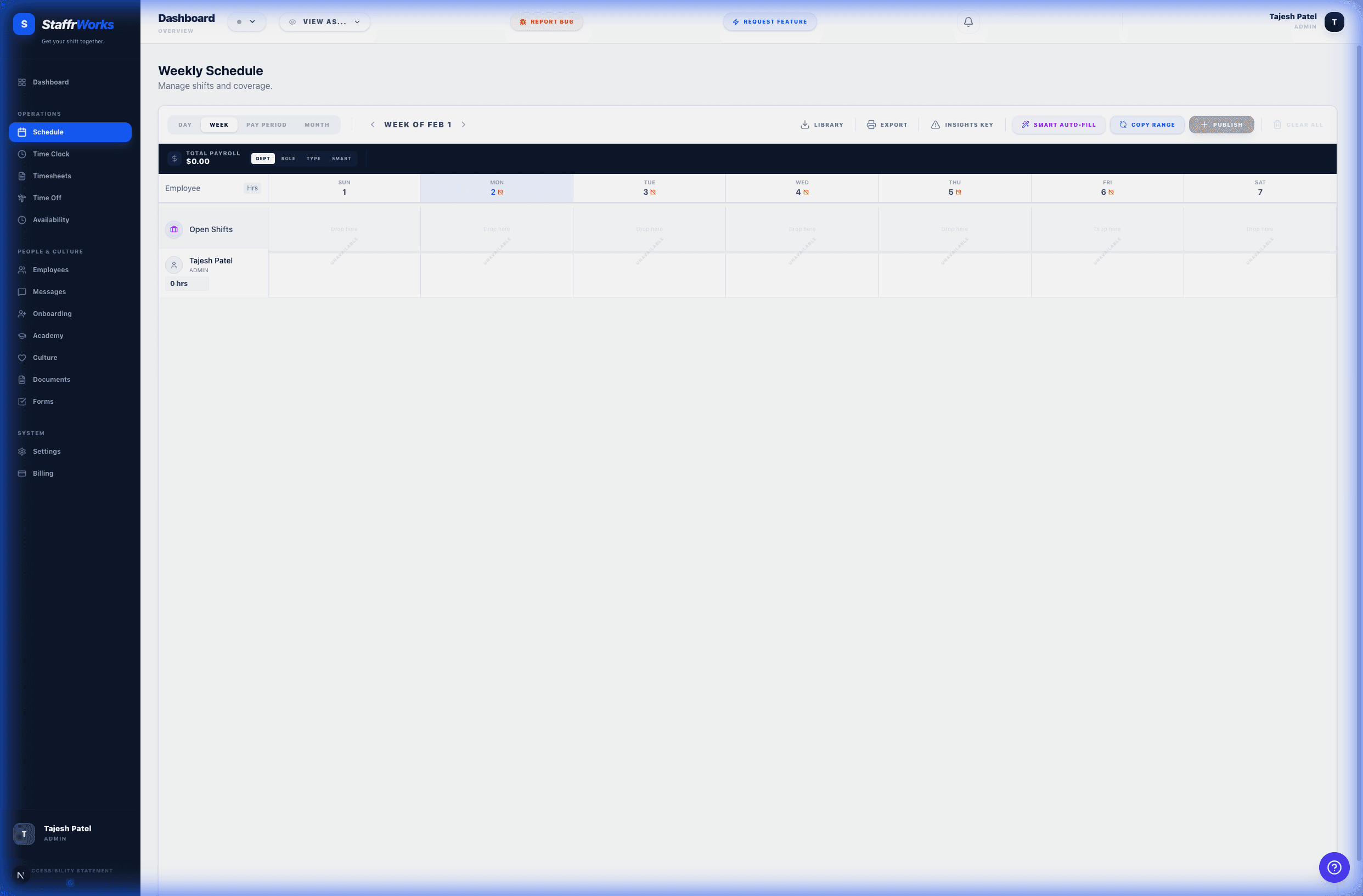
Draft Mode: Shifts are yellow/striped until published. Staff cannot see drafts.
Published: Click "Publish" to notify staff. Shifts turn solid color.
Open Shifts: Unassigned shifts that eligible staff can claim.
2. Approving Timesheets
Navigate to Timesheets to review clock-ins. You must approve all hours before Payroll export.
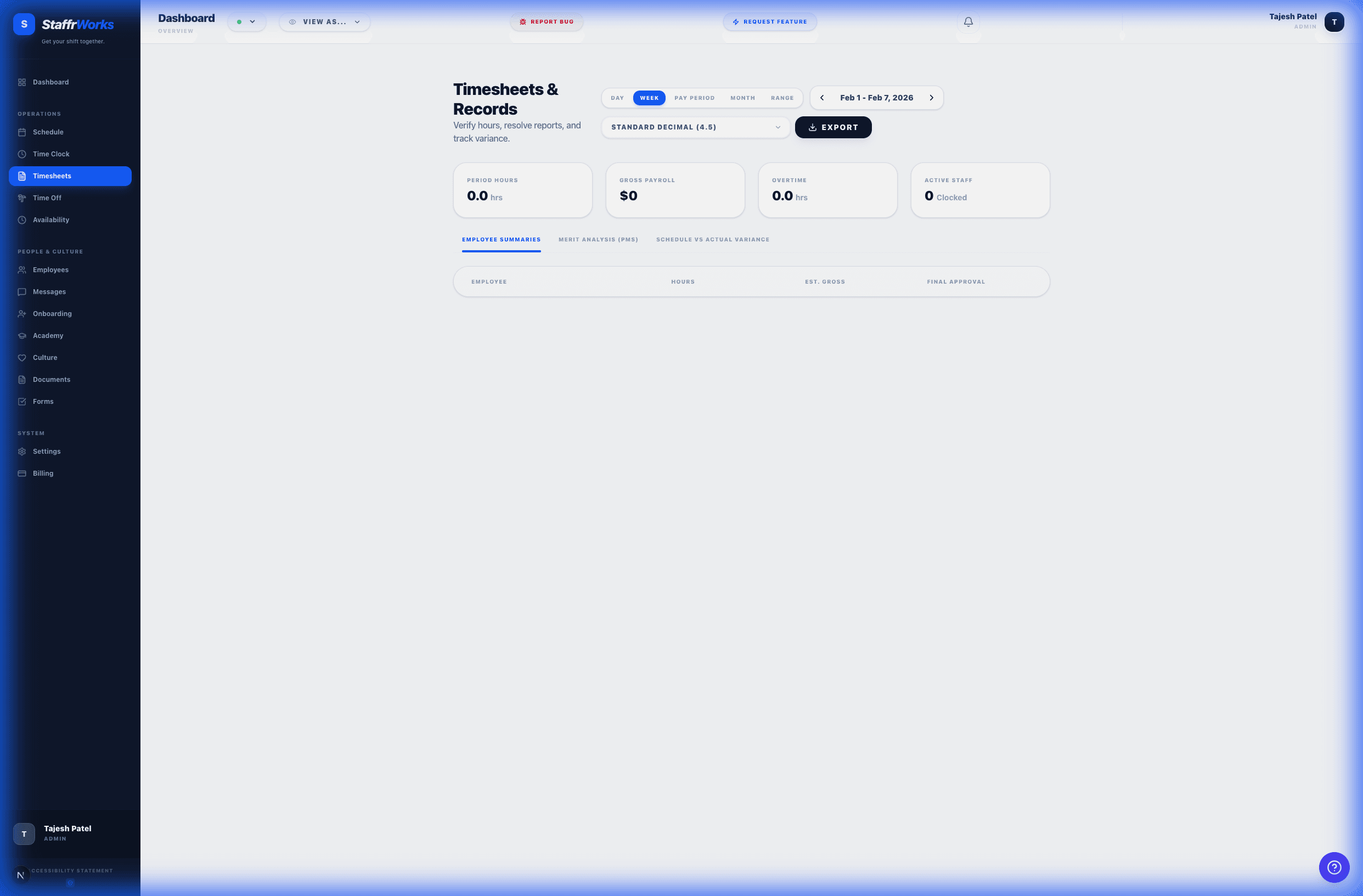
- Alerts: Red indicators show missed clock-outs or early arrivals.
- Editing: Click the Pencil icon to correct a timestamp if an employee forgot to punch.
- Bulk Approve: Use the checkbox in the header to approve all valid entries at once.
3. Time Off Requests
Employees request PTO or Sick Leave via the app. You will see them in the Time Off tab.
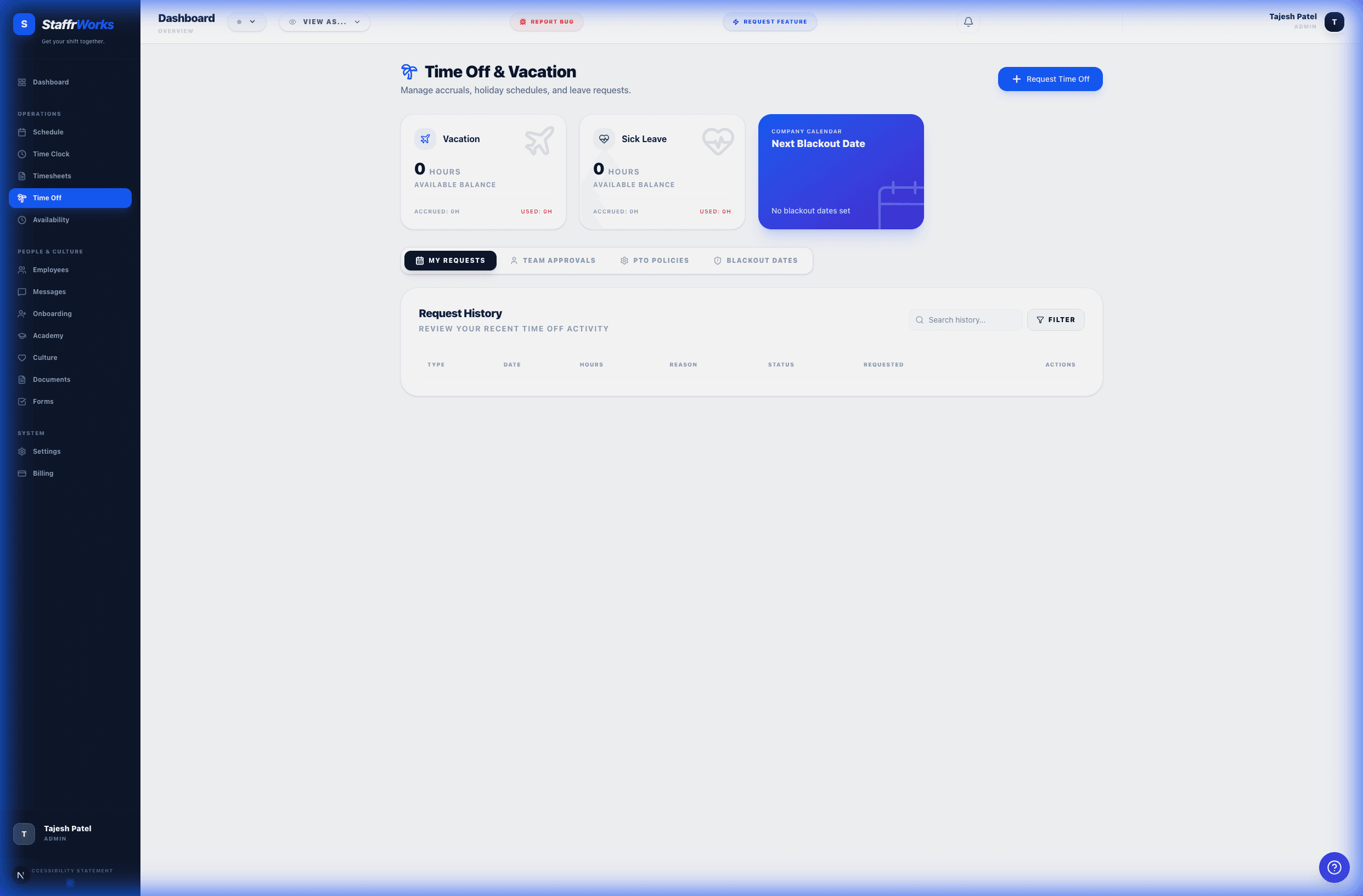
Check the "Balance" column to ensure the employee has enough accrued hours. Approved requests automatically block out the Schedule for those days.
4. Team Communication
Use Messages to send blasts or chat 1:1.
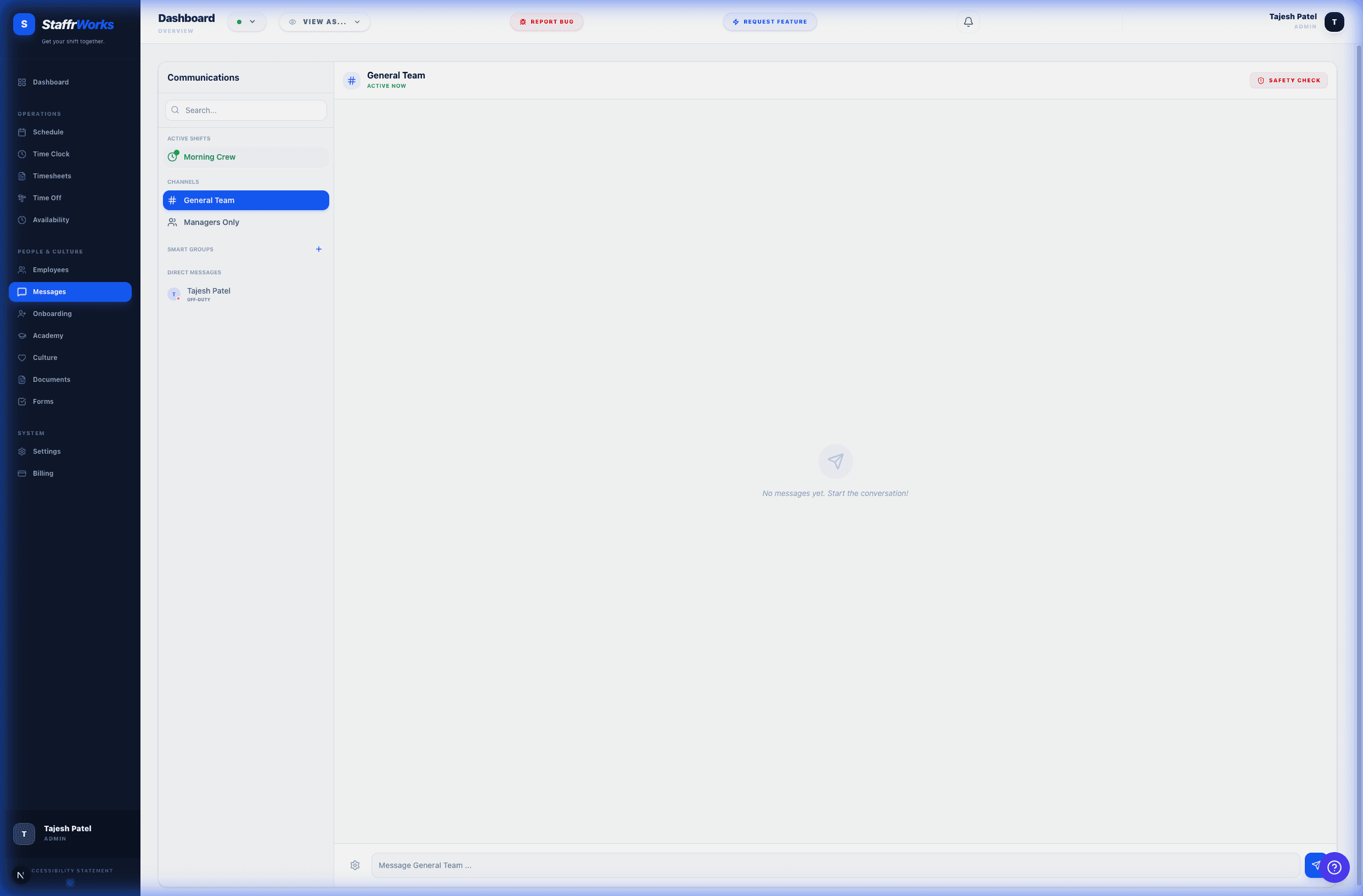
- Announcements: Sent to "All Staff". Read-only for employees (they cannot reply all).
- Direct Messages: Private threads with specific employees.